
Silk Mobile
Table of Contents (Homepage)
- Overview
- Setting Up
- Getting Started
- How To
- Connecting Devices And Emulators
- Preparing Applications For Testing
- Managing Applications
- Recording Tests
- Working With Test Commands
- Adding Commands To Your Scripts
- Object Commands
- Click
- ClickCoordinate
- ClickIn
- ClickOffset
- Drag
- ElementGetProperty
- ElementGetTableRowsCount
- ElementListPick
- ElementListSelect
- ElementListVisible
- ElementScrollToTableRow
- ElementSendText
- ElementSetProperty
- ElementSwipe
- ElementSwipeWhileNotFound
- GetAllValues
- GetElementCount
- GetElementCountIn
- GetTextIn
- IsElementBlank
- IsElementFound
- IsFoundIn
- LongClick
- RunNativeAPICall
- SendWhileNotFound
- VerifyElementFound
- VerifyElementNotFound
- VerifyIn
- WaitForElement
- WaitForElementToVanish
- GetCoordinateColor
- DragDrop
- Application Commands
- Device Commands
- Web (Hybrid) Specific Commands
- Utilities Commands
- Monitoring Commands
- Configuration Commands
- ExtractLanguageFiles
- SetDefaultClickDownTime
- SetDefaultTimeOut
- SetDefaultWebView
- SetDragStartDelay
- SetInKeyDelay
- SetKeyToKeyDelay
- SetLanguage
- SetLanguagePropertiesFile
- SetShowImageInReport
- SetShowPassImageInReport
- SetShowReport
- SetSpeed
- SetThrowExceptionOnFail
- SetWebAutoScroll
- StartStepsGroup
- StopStepsGroup
- TextFilter
- Miscellaneous Commands
- Controlling Element Identification Rules
- Editing Test Objects
- Executing Test Scripts
- Report Of Executed Test
- Working From Code Environment
- Continuous Integration
- Layout Verification Tests
- Use Device Vitals Monitors
- Troubleshooting
- Terminology
Offline License Activation
To activate the Silk Mobile license through a self-service customer licensing portal:
-
Make sure you have installed the latest version of Silk Mobile .
-
Obtain the product key from the Micro Focus sales representative. The product key is an alphanumeric string in the following form: xxxxxxxx-xxxx-xxxx-xxxx-xxxxxxxx
-
Go to the self-service portal url: https://licactivation.com/ems/customerLogin.html
You may need to install additional SSL certificates in order to access it. To install additional SSL certificates, please contact your network administrator.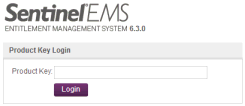
-
When presented with the login screen, enter your product key and click Login. You will then see the following screen:

-
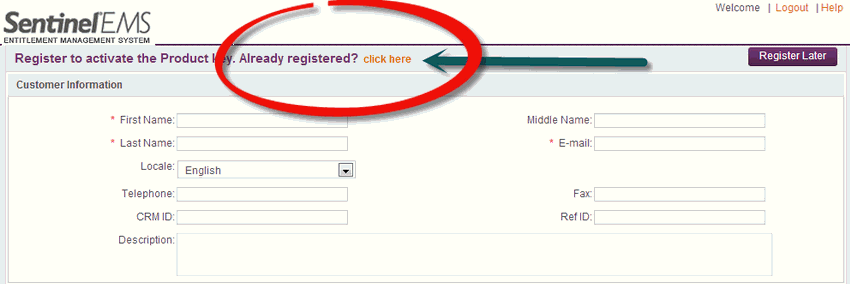
Enter your details and click 'Save'. This step is optional. You can skip it by clicking “Register Later”.
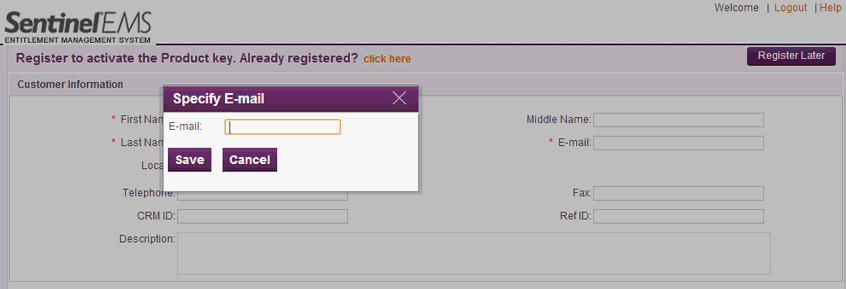
Note: I f you already used an E-mail address to register - click on the 'Already registered? click here' link and then enter the E-mail address:
-
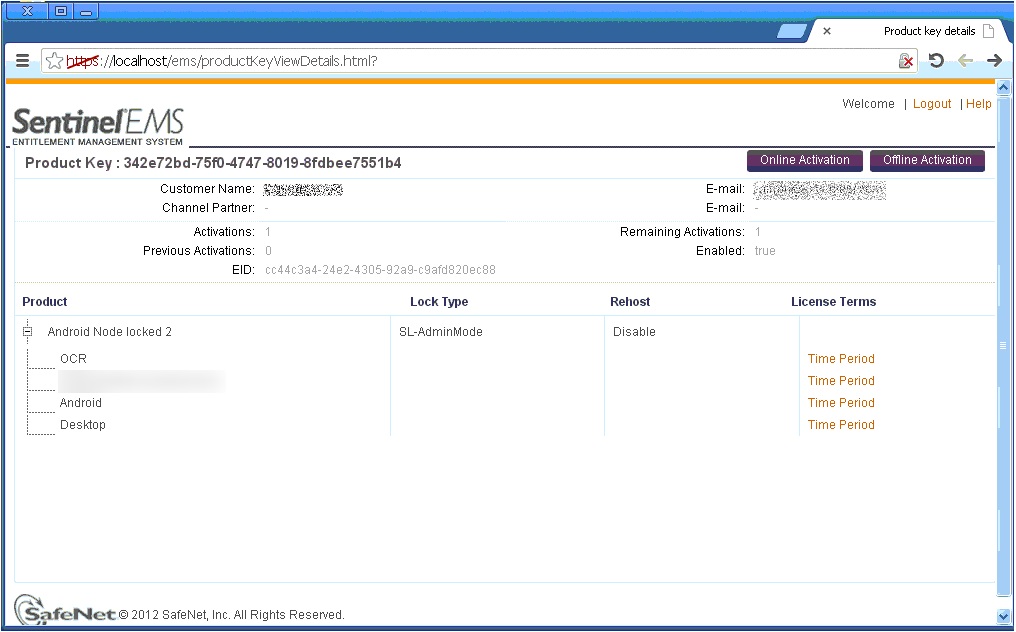
After the registration step, you will be presented with your license details.
-
We will use 'Offline Activation'. During offline activation we will use a tool supplied with the Silk Mobile product to a generate fingerprint of the machine on which the Silk Mobile product will run. This fingerprint will be uploaded to a self-service portal for the final license activation.
-
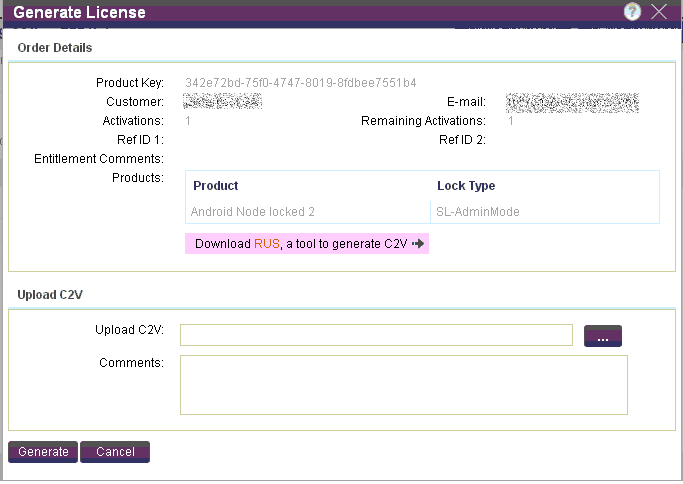
In the self-service portal, click 'Offline Activation'. You will be presented with following dialog:
-
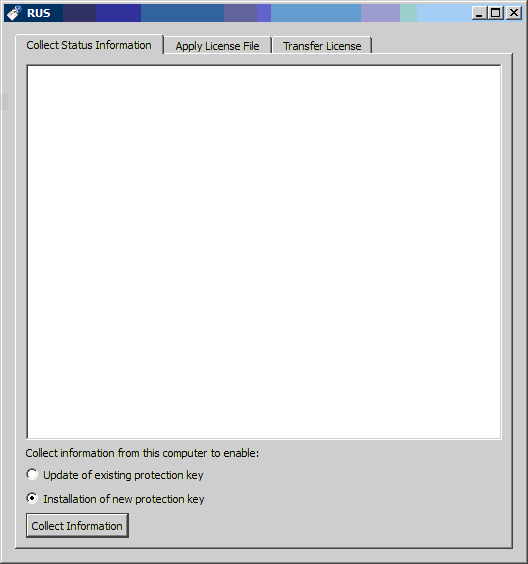
Download the RUS utility by clicking on the "RUS" link. After you have downloaded the utility, execute it.
-
Under the tab titled “Collect Status Information”, choose “Installation of new protection key” and click “Collect Information”. The utility will present a file chooser dialog for you to store the C2V file which will be uploaded to the self-service portal.
-
After you have the C2V file, go to the self-service portal and click the button displaying three periods in the “Upload C2V” section. This will allow you to upload the previously generated file. After selecting the file, click "Generate". The portal will upload the C2V file and will generate the final license file with extension V2C. Save the file and transfer it to the machine where you have generated the C2V file.
-
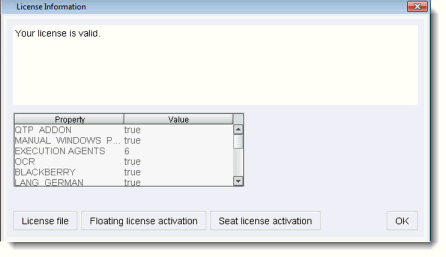
To import the license on to the target machine, open Silk Mobile , select the "Help" menu and choose "License Information".
-
Click "Import license file" and choose the generated V2C file.
-
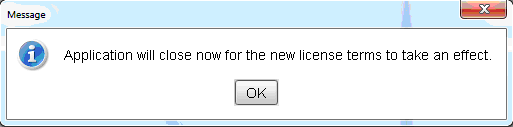
After the import process finishes, the application will close.
-
Reopen Silk Mobile and validate the license terms: Go to Help >> License Information.